
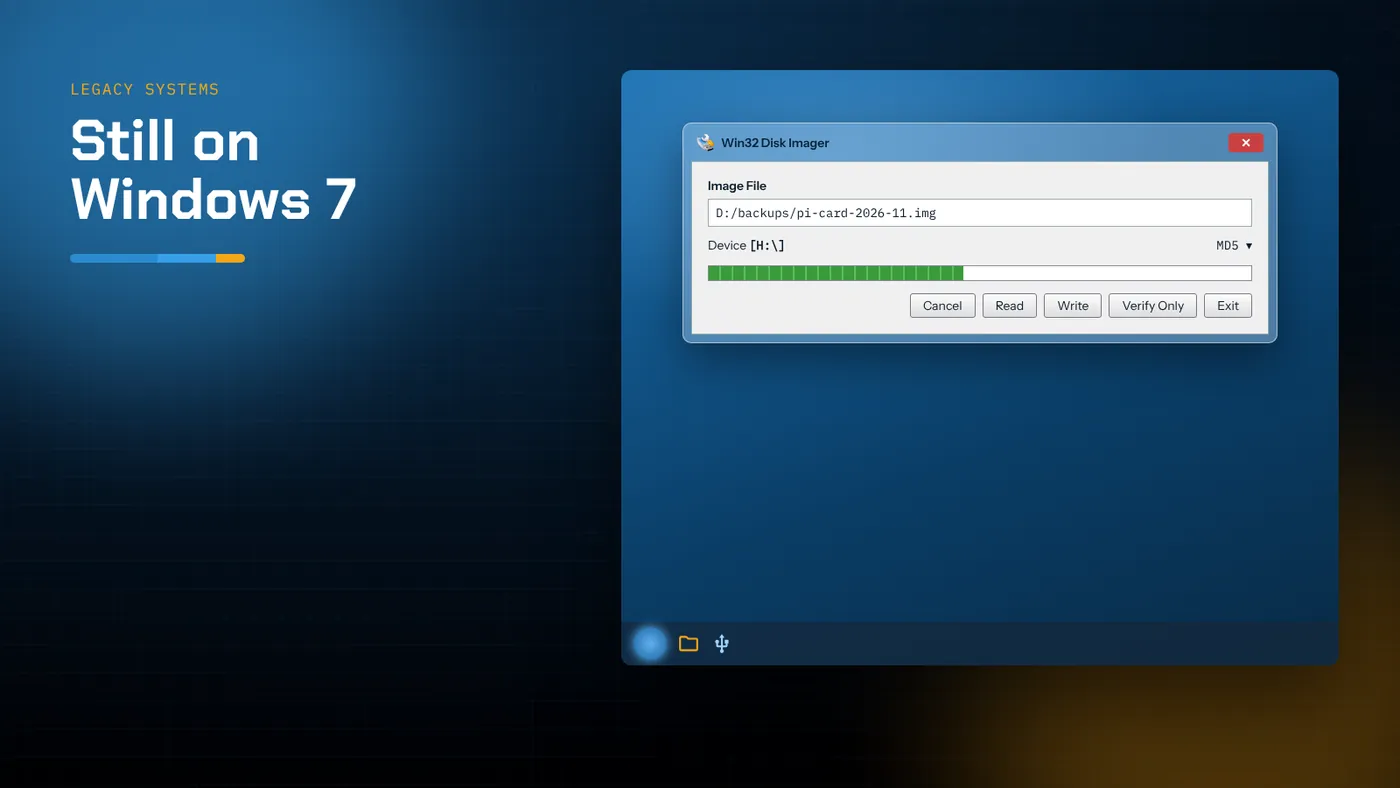
- Both the Qt 1.0.0 release and the native Win32 build run on Windows 7 SP1; the native build also covers XP.
- USB 3 ports on Windows 7 need the chipset vendor's driver, or cards fall back to slow USB 2 speeds or don't appear at all.
- Old root certificates on Windows 7 can break downloads, so fetch files on a modern PC and copy them across if needed.
- Windows 7 no longer receives security updates; keep imaging machines offline where you can.
Why Windows 7 still matters for imaging
Windows 7 left extended support years ago, but it hasn't disappeared. It still runs on workshop PCs attached to CNC machines, lab computers tied to instruments, and older laptops kept in a drawer for firmware jobs. Those are exactly the places where people need to write or back up SD cards and USB sticks, because the equipment around them often boots from removable media.
The good news is that Win32 Disk Imager was developed when Windows 7 was current. It runs comfortably there. The difficulties are all at the edges: getting the files onto the machine, getting USB 3 to behave, and working safely on an unpatched system.
Which build to use
Qt 1.0.0 release
The SourceForge 1.0.0 installer and binary ZIP run on Windows 7 SP1 in both 32-bit and 64-bit editions. This is the version most Windows 7 tutorials show, and it behaves exactly as they describe.
Make sure Service Pack 1 is installed. Some runtime components the Qt 5 build uses expect SP1-level system files. You can check under Control Panel → System; it should say "Service Pack 1".
Native Win32 build
The GitHub native rewrite targets even older systems. Its README states that it runs on Windows XP. On Windows 7 it starts faster and uses less memory than the Qt build, and it adds the ability to target a whole USB device or a single partition.
Building it needs Visual Studio. The README lists Visual Studio 2010 or later, WTL and the Windows SDK 7.0. You don't have to build on the Windows 7 machine itself. Build on a modern PC with a 32-bit target and the v141_xp platform toolset (or the 2010 toolset if you have it), link the runtime statically with /MT, and copy the single executable across. That avoids installing a Visual C++ redistributable on the old machine.
Getting files onto a Windows 7 PC
Certificate and TLS problems
A fresh or unpatched Windows 7 installation has outdated root certificates and older TLS settings. Modern websites, including GitHub and many SourceForge mirrors, may fail to load or downloads may stop with certificate errors in Internet Explorer.
The simplest fix is to avoid downloading on the Windows 7 machine at all:
- Download the program and your images on a current PC.
- Check their hashes there.
- Copy them across on a USB stick or over the local network.
If you must download on the Windows 7 machine, an up-to-date third-party browser that still supports the OS is more likely to succeed than Internet Explorer.
Check hashes on both sides
When you copy files between machines, generate the SHA-256 of each image before and after the copy. On Windows 7, the program's own Hash panel does this. PowerShell 2.0 on Windows 7 doesn't include Get-FileHash, so the built-in panel is the easiest option there. The Microsoft certutil command also works:
certutil -hashfile D:\images\controller-v4.img SHA256
USB 3.0 on Windows 7
Windows 7 has no built-in driver for USB 3 (xHCI) controllers. On PCs where the manufacturer installed one, blue USB 3 ports work normally. On a clean reinstall without that driver, you'll see one of the following:
- The card reader doesn't appear at all in a blue port.
- It works but at USB 2 speeds or slower.
- It disconnects partway through a long write.
Install the controller driver from the motherboard or laptop manufacturer (Intel, AMD, Renesas/NEC, ASMedia and others all supplied Windows 7 drivers). If you can't, use a black USB 2 port. Writes will be slower, around 15–30 MB/s at best, but stable.
Card readers and SDXC on Windows 7
Windows 7 handles SDHC (up to 32 GB) cards natively. SDXC cards (64 GB and up) come formatted as exFAT, which Windows 7 SP1 supports, so they mount normally. Two quirks are common, though:
- Built-in laptop readers from the Windows 7 era sometimes don't support SDXC at all, or need an updated driver from the laptop vendor. If a 64 GB card isn't detected but a 16 GB card is, that's the likely cause. A cheap USB reader solves it.
- Readers that show four empty drive letters (multi-slot readers) clutter the Device list. The program lists only slots with media, but the empty ones can slow the program's start. Unplug them when you aren't using them.
A Windows 7 write routine
- Log on with an administrator account. On Windows 7, UAC still prompts by default when the program starts.
- Insert the card. If AutoPlay pops up, close it.
- Close any Windows Explorer windows showing the card.
- Start Win32 Disk Imager. Click the folder icon and choose your
.img. - Choose the card's letter in Device. Check its size.
- In the Hash panel, pick SHA256, press Generate and compare the value with the one you recorded.
- Press Write and confirm.
- When it finishes, press Verify Only.
- If Windows then asks to format the disk, press Cancel.
Backing up cards on Windows 7
Reading a card on Windows 7 is a common job: an older controller's boot card is often the only copy of its configuration. Before you touch the card for any other reason, read it:
- Type a descriptive path into Image File, such as
D:\backups\lathe-controller-2026-11-02.img. - Select the card and press Read.
- Generate a SHA-256 of the new image and note it in a text file next to it.
- Copy the image and its hash to a second place, such as a network share or another drive.
If the drive you're saving to is formatted FAT32, images larger than 4 GB will fail partway through. Use NTFS for your backup drive.
Working safely on an unsupported OS
Windows 7 gets no security updates, so treat the imaging PC as a tool, not a general-purpose computer:
- Disconnect it from the internet when you don't need it online.
- Don't browse the web or open email on it.
- Scan USB sticks on a current, patched PC before plugging them into the Windows 7 machine.
- Keep a known-good image of the Windows 7 system disk itself, so you can restore the PC if it's ever compromised.
None of this is specific to Win32 Disk Imager, but imaging PCs are often the ones handling files from many different places.
Troubleshooting on Windows 7
| Problem | Likely Windows 7 cause | Fix |
|---|---|---|
| Program won't start, missing DLL | Qt build files separated, or SP1 missing | Keep the whole folder together; install SP1 |
| VCRUNTIME or MSVCR missing | Native build linked dynamically | Rebuild with /MT or install the matching redistributable |
| Card not detected in blue port | No USB 3 driver | Install the chipset driver or use a USB 2 port |
| 64 GB card not detected | Old built-in reader without SDXC support | Use a USB card reader |
| Error 5 during write | Explorer, indexing or antivirus holding the volume | Close windows, pause the scanner, retry |
| Downloads fail with certificate errors | Outdated root certificates | Download on a modern PC and copy across |
When to move the job elsewhere
If you find yourself fighting the Windows 7 machine more than the card, it's often quicker to do the imaging on a modern PC and move only the card between machines. The image format is the same everywhere; a card written on Windows 11 boots the same equipment as one written on Windows 7. Keep the Windows 7 PC for what only it can do, such as running the vendor software that talks to the equipment.
Choosing images that still boot older hardware
Windows 7 machines are often paired with older target hardware, and that affects which images make sense. A few points are worth checking before you write:
- 32-bit or 64-bit target. Many current single-board operating systems publish 64-bit images by default. Older boards may need the 32-bit or legacy release.
- Card size limits on the target. Some older devices only boot from SDHC (32 GB or less). Writing an image to a 64 GB SDXC card can leave it unbootable on that device, even though the write itself succeeded.
- Firmware images from the vendor. For industrial equipment, use the exact image the vendor supplied for that firmware revision, and keep a read-back of the original card before replacing it.
None of these is a Windows 7 issue as such, but they come up far more often on the legacy setups where Windows 7 survives.
Keeping a second copy of the imaging PC
If a Windows 7 machine is the only computer that can run some piece of vendor software, it's worth protecting the machine itself as carefully as the cards it writes. A simple approach is to keep a full system image on an external drive, refreshed whenever you change anything, and store that drive away from the PC. Then a dead hard disk becomes an afternoon's restore rather than a lost toolchain.
Summary
Win32 Disk Imager runs well on Windows 7 SP1. The Qt 1.0.0 release is the familiar choice, and the native build is lighter and also reaches XP. Install a USB 3 driver or use USB 2 ports, use a USB reader for SDXC cards if the built-in slot is too old, download files on a modern machine if certificates get in the way, and keep the PC offline. With those adjustments, a legacy machine remains a dependable imaging station.