
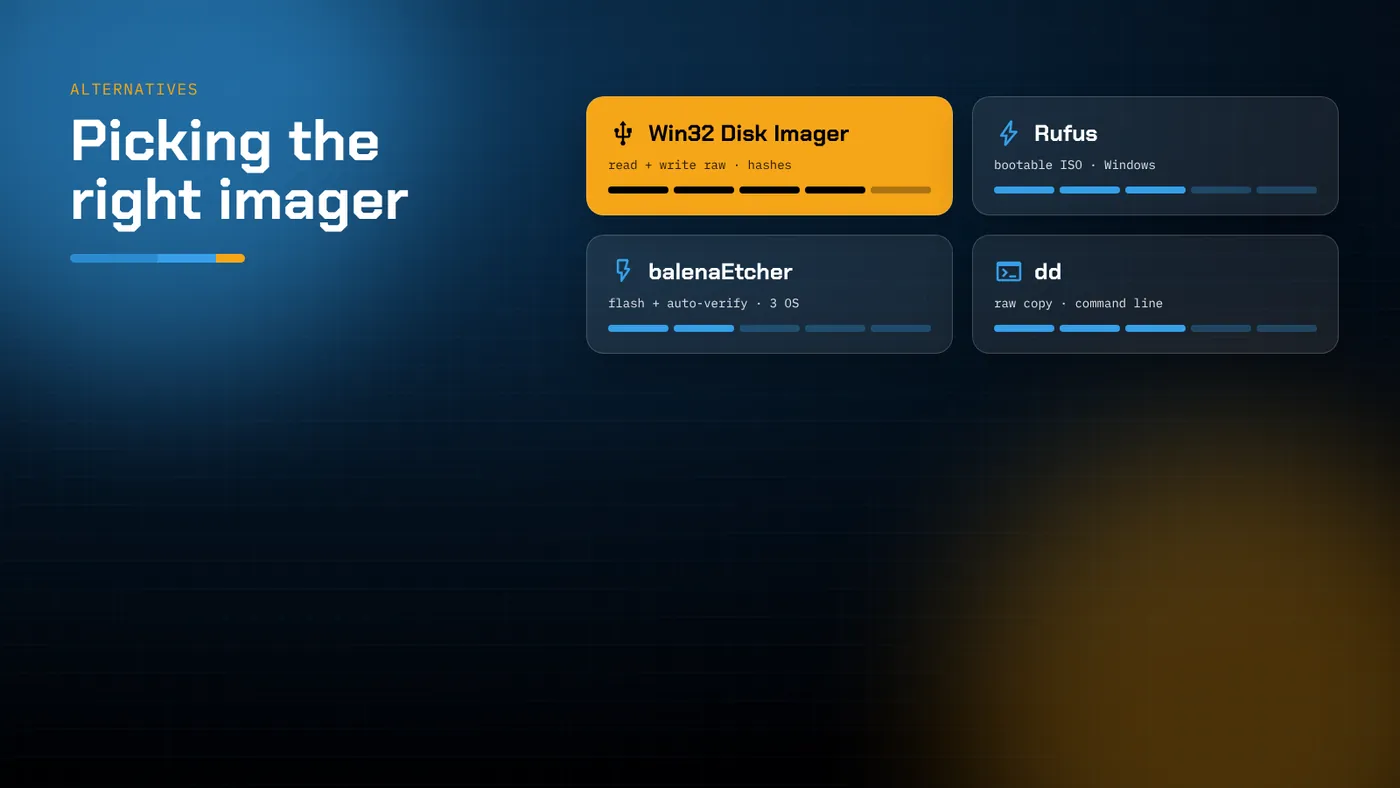
- Few alternatives can read a card back into an image; that is still Win32 Disk Imager's strongest point.
- Rufus is the right tool for Windows installation USBs; Etcher and Raspberry Pi Imager suit guided one-way flashing with automatic verification.
- USBImager is the closest like-for-like replacement, adding compressed images and macOS/Linux builds.
- Choose by job: back up, flash, make a Windows installer, or work on another operating system.
Why look for an alternative at all?
Win32 Disk Imager is good at a narrow job: copying raw images between files and removable media, with hashes and a verify step. People look for alternatives for a few recurring reasons:
- They need to make a Windows installation USB, which this tool can't do.
- Their image is compressed (
.xz,.zip,.gz) and they don't want to extract a large file first. - They're on macOS or Linux.
- They'd like automatic verification without pressing a second button.
- The program won't start on a particular PC and they need to get on with the job.
The right replacement depends on which of those applies. This guide compares the main options by what they actually do, then gives a short decision list at the end.
At a glance
| Tool | Platforms | Write raw image | Read card to image | Compressed images | Verify | Windows installer USB |
|---|---|---|---|---|---|---|
| Win32 Disk Imager | Windows | Yes | Yes (full or allocated) | No | On demand | No |
| Rufus | Windows | Yes (DD mode) | Partial (VHD/VHDX) | Yes | Bad-block check | Yes |
| balenaEtcher | Windows, macOS, Linux | Yes | No | Yes | Automatic | No |
| Raspberry Pi Imager | Windows, macOS, Linux | Yes | No | Yes | Automatic | No |
| USBImager | Windows, macOS, Linux | Yes | Yes | Yes | Optional | No |
| dd | Linux, macOS (Windows via ports) | Yes | Yes | Via pipes | Manual | No |
Rufus
Best for: Windows and Linux installation media on Windows PCs.
Rufus is the tool most people already have. Its main strength is turning ISO files into bootable USB drives. It understands Windows installer ISOs, handles UEFI and legacy boot, and can apply customisations to Windows 11 installers. None of that is in Win32 Disk Imager's scope.
For raw images, Rufus offers a DD image mode. When you select a .img, or a hybrid ISO and choose DD, it writes the file sector by sector, just as Win32 Disk Imager does. It also handles compressed images directly.
Where it differs:
- Reading. Rufus can save a drive as a VHD or VHDX virtual disk image, which is useful but not the same as a plain
.img. To restore it with another tool, you'd need to convert it first. - Verification. Rufus offers a bad-block check, which tests the drive's surface. That's a different thing from comparing written data with the source image.
- Hashes. It can show checksums of the selected image file.
Verdict: keep Rufus for installer USBs. For card backups and restores, Win32 Disk Imager remains the better fit.
balenaEtcher
Best for: simple, guided flashing on any desktop operating system.
Etcher's interface has three steps: pick an image, pick a target, Flash. It accepts compressed images and URLs, writes, and then validates automatically by reading the device back. It hides system drives from the target list by default, which makes it hard to wipe the wrong disk.
Where it differs:
- No reading. Etcher writes only. There is no way to back up a card into an image.
- Size. It is built on Electron, so the download and memory use are far larger than Win32 Disk Imager's.
- Cross-platform. It runs on Windows, macOS and Linux with the same interface.
Verdict: a good choice for newcomers and for Mac users. Not a replacement if you need backups.
Raspberry Pi Imager
Best for: setting up cards for Raspberry Pi boards.
Raspberry Pi Imager downloads the OS for you from a built-in catalogue, writes and verifies it, and can apply settings before first boot: hostname, user account, Wi-Fi and SSH. That saves a lot of time on headless setups. You can also choose Use custom to write any local .img.
Where it differs:
- No reading of cards to images.
- Board-focused. It's built around one family of boards, even though custom images work.
- Customisation is a real advantage that Win32 Disk Imager doesn't attempt.
Verdict: if you're setting up Raspberry Pi cards, use it for first-time installs. Use Win32 Disk Imager to back those cards up once they're configured.
USBImager
Best for: a like-for-like replacement with modern extras.
USBImager is a small open-source tool with a deliberately minimal interface. It writes raw and compressed images, can read devices back to images (optionally compressing them), and can verify after writing. Builds exist for Windows, macOS and Linux, including ARM.
Where it differs:
- It covers almost exactly the same ground as Win32 Disk Imager, plus compression and cross-platform builds.
- There's no built-in hash panel, so use the operating system's tools for checksums.
- The interface is even sparser, which some people prefer and others find unclear.
Verdict: the closest overall replacement if you need compression support or a macOS/Linux version.
dd (and its relatives)
Best for: Linux and macOS users comfortable with a terminal, and scripting.
dd is the original raw copy tool. Every Linux distribution and macOS has it.
# Write (Linux) – double-check of= before pressing Enter
sudo dd if=image.img of=/dev/sdX bs=4M status=progress conv=fsync

# Read a card into an image
sudo dd if=/dev/sdX of=backup.img bs=4M status=progress
Where it differs:
- No guard rails. Point
of=at the wrong disk and it will overwrite it without asking. - Fully scriptable. It's ideal for batch work and automation.
- Compressed images work through pipes, for example
xzcat image.img.xz | sudo dd of=/dev/sdX bs=4M.
Verdict: powerful and universal, but only if you're careful. On Windows, prefer a graphical tool.
Windows' own tools
Windows has no built-in raw image writer. Disk Management and diskpart can partition and format cards, and are the right way to reclaim a card after writing an image, but they can't write a .img. Windows can mount VHD files, not raw images. So on Windows, a third-party tool is always needed for this job.
Choosing by job
- "I need to back up a working card and restore it later." Use Win32 Disk Imager (or USBImager). Few alternatives read cards back to plain images.
- "I'm making a Windows 10/11 install stick." Use Rufus or Microsoft's Media Creation Tool.
- "My image is a 1 GB
.xzfile and I don't want to extract 8 GB." Use Etcher, Raspberry Pi Imager, Rufus or USBImager. - "I'm on a Mac." Use Etcher, Raspberry Pi Imager, USBImager or
dd. - "I'm setting up twenty Raspberry Pis with Wi-Fi details." Use Raspberry Pi Imager's customisation, then back up one finished card with Win32 Disk Imager and clone it.
- "Win32 Disk Imager won't start on this PC." Try the other build first (native vs Qt). If neither starts, USBImager is the closest swap.
Portable options
If you carry tools on a USB stick, footprint matters. The native build of Win32 Disk Imager, Rufus and USBImager each run as a small standalone executable with nothing to install. Etcher is far larger and is usually installed rather than carried. Raspberry Pi Imager has a portable form on some platforms, but it is normally installed too. For a pocket kit, the small tools win.
Using more than one tool
These tools aren't rivals so much as different instruments. A sensible Windows kit includes:
- Win32 Disk Imager for reading, writing and hashing raw images.
- Rufus for installer USBs.
- 7-Zip for extracting compressed images.
All three are small, free and portable. Together they cover nearly every removable-media job you'll meet on a Windows PC.
A word on verification
Whatever tool you use, check the result. Etcher and Raspberry Pi Imager do it automatically; with Win32 Disk Imager, press Verify Only after every write that matters. Verification is what catches counterfeit cards and failing readers before you find out the hard way.
What switching costs you
Moving from Win32 Disk Imager to another tool rarely means changing your images. Raw .img files are the same whichever program writes them, so a card written by Etcher boots exactly like one written by Win32 Disk Imager. What changes is the workflow around it:
- Backups. If your routine depends on reading cards back to
.img, check that the replacement can do it and produces a plain raw file rather than a virtual disk format. - Hashes. Tools without a hash panel push that step to PowerShell (
Get-FileHash),certutil, orsha256sumon Linux and macOS. - Verification. Automatic verification is convenient, but it doubles the time per card. On large batches, some teams verify a sample rather than every card. Decide deliberately rather than by default.
- Training. A different interface means a different place to choose the target device. Walk new users through it once with a spare card.
Avoiding look-alike downloads
Every popular imaging tool has imitators and repackaged installers on download portals. Get each one from its own official site or repository, and compare checksums where the developer publishes them. That advice applies just as much to alternatives as to Win32 Disk Imager itself.
A note on Windows installer USBs
Because people often ask: writing a standard Windows 10 or 11 ISO with Win32 Disk Imager won't produce a bootable installer. Those ISOs aren't hybrid images, so a raw copy leaves the stick with a layout firmware can't boot from. Rufus and Microsoft's Media Creation Tool understand how the installer must be laid out, including splitting large files for FAT32 UEFI boot. Use one of them for that job, and keep Win32 Disk Imager for raw images.
Summary
There's no single best Win32 Disk Imager alternative, only the best tool for a given job. Rufus wins for Windows installers, Etcher and Raspberry Pi Imager for guided cross-platform flashing, USBImager as the closest like-for-like replacement, and dd for terminal users. For backing up and restoring cards as plain images, with hashes in the same window, Win32 Disk Imager is still one of the simplest tools available.