
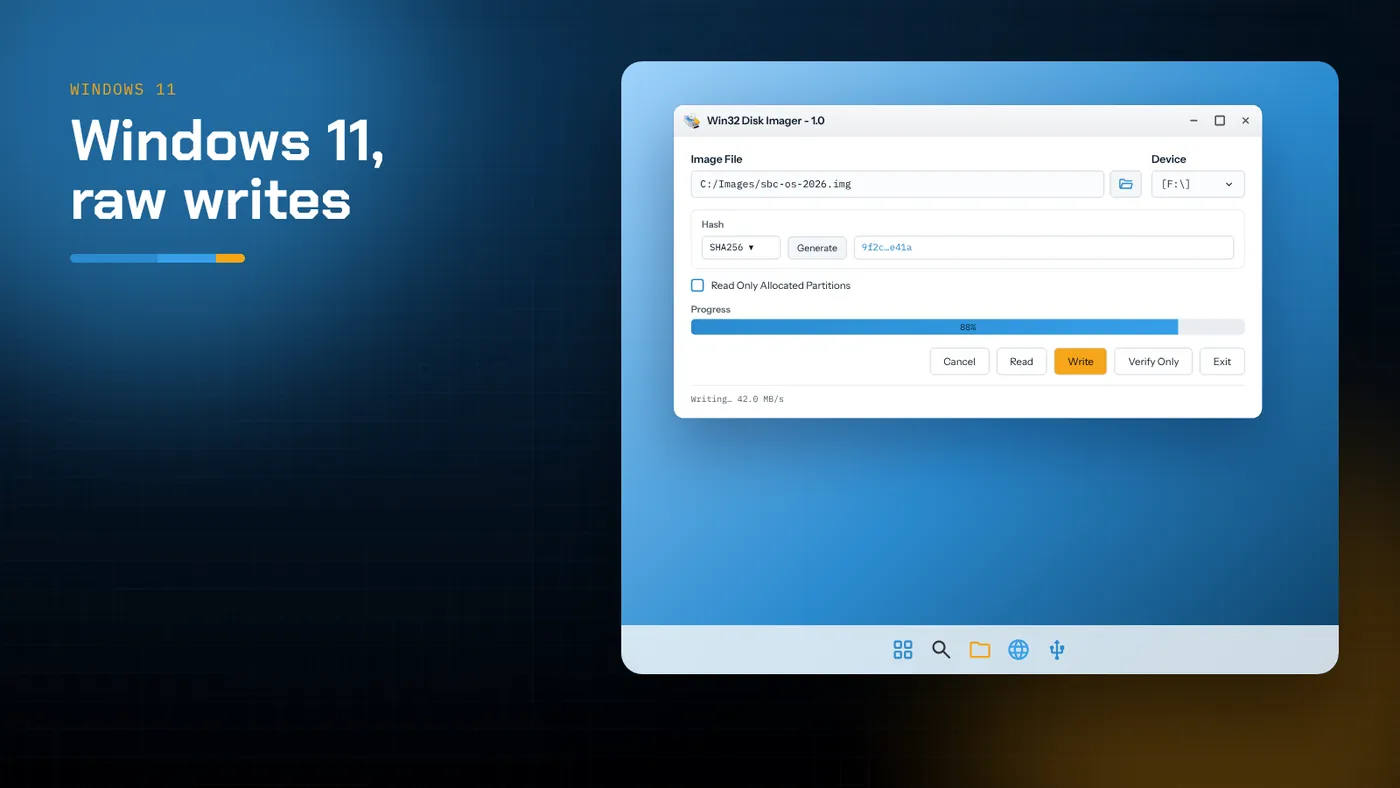
- Both the native Win32 build and the 1.0 Qt release run on current Windows 11 builds, on x64 and on ARM64 through emulation.
- Most Windows 11 trouble comes from security layers (UAC, SmartScreen, Smart App Control) and from Explorer holding the card open.
- Close File Explorer windows on the card before Write, and say no when Windows offers to format a freshly written card.
- Smart App Control can block unsigned self-built executables outright; a widely downloaded release build or another PC are the easiest ways round it.
Does it still work on Windows 11?
Yes. The program uses the same Windows storage APIs that have existed since Windows 2000: open the volume, lock it, dismount it, then read or write the physical disk. Windows 11 hasn't removed or restricted any of them for administrators. Both the native Win32 build from the GitHub source and the 1.0.0 Qt release from SourceForge run on current Windows 11 feature updates.
What has changed is everything around the program. Windows 11 adds more security prompts, a new File Explorer that likes to open and index drives as soon as they appear, and on some PCs a feature called Smart App Control that can refuse to run unsigned software. Almost every "it doesn't work on Windows 11" report traces back to one of these, not to the imaging itself.
Choosing a build for Windows 11
Native Win32 build
Build it from the source archive using Visual Studio with the Desktop development with C++ workload and the WTL headers. A 32-bit Release build runs on every Windows 11 edition. On a Windows 11 PC you can build and run on the same machine, which also avoids the reputation warnings a downloaded executable gets.
1.0.0 installer from SourceForge
The installer is the easiest route if you don't want to compile anything. It installs into Program Files, adds a Start menu entry and runs as a normal desktop app. Because it is an older 32-bit Qt program, Windows 11 runs it through the usual WOW64 layer on x64 PCs with no visible difference.
Windows 11 on ARM
On Snapdragon-based laptops, x86 programs run through Windows' built-in emulation. Both builds work, though a little more slowly at startup. The copy speed is limited by the card reader, not the processor, so writes take about as long as on an x64 machine. Make sure the card reader is one Windows on ARM has a driver for. Most standard USB mass-storage readers are, but some laptop SD slots use vendor drivers that took time to arrive on ARM.
The Windows 11 security layers, one by one
User Account Control
Raw disk access needs administrator rights, so the program asks for elevation at launch. If the UAC prompt is hidden behind another window, or you dismiss it, nothing appears to happen. If you think the program "won't open", check the taskbar for a flashing shield icon first.
If you work from a standard (non-administrator) account, UAC asks for an administrator password instead of a Yes button. That is expected and can't be bypassed safely.
SmartScreen
When you run an executable downloaded from the internet, SmartScreen checks its reputation. A self-built or rarely downloaded file will show "Windows protected your PC". Choose More info and confirm the file name and publisher. Only choose Run anyway if the file came from the official repository or project page. A file you built locally doesn't carry the internet zone mark, so it usually skips this check entirely.
Smart App Control
Smart App Control is available on clean installations of Windows 11 22H2 and later. When it is set to On, it blocks apps that are unsigned and that Microsoft's cloud service doesn't recognise. A freshly built native executable fits that description. You'll see a message that the app was blocked, with no Run anyway option.
You have three choices:
- Try the widely downloaded 1.0.0 release instead of a self-built executable. Files with an established reputation are more likely to be allowed, though this isn't guaranteed.
- Run the program on another PC.
- Turn Smart App Control off in Windows Security → App & browser control → Smart App Control settings. On some Windows 11 builds, switching it back on later requires a clean installation, so read the prompt carefully before you change it.
Most PCs that were upgraded from Windows 10 have Smart App Control off already, which is why only some users ever see this.
Core isolation and Memory integrity
Memory integrity blocks incompatible kernel drivers. Win32 Disk Imager doesn't install a driver, so this setting has no effect on it. If a card reader stops working after you enable Memory integrity, the problem is the reader's driver, not the imaging tool.
Preparing the card on Windows 11
Windows 11's File Explorer is eager. When you insert a card it often opens a window, starts generating thumbnails and may run a quick antivirus scan. All of that keeps a handle open on the volume, and the program needs exclusive access. If it can't get it, you'll see Error 5: Access is denied or a failure to lock the volume.
A routine that avoids this:
- Insert the card and wait for Explorer to finish opening it.
- Close every Explorer window that shows the card, including any in the navigation pane preview.
- Wait ten seconds.
- Open Win32 Disk Imager and select the card in the Device list.
If you see an AutoPlay prompt, dismiss it rather than choosing an action.
Writing an image, step by step
- Download the image and, if it's compressed (
.zip,.xz,.gz), extract it with File Explorer (Windows 11 can open many archive types natively) or with 7-Zip. - Open the program as administrator.
- Click the folder icon next to Image File and select the
.img. If you're writing a hybrid.iso, switch the file dialog filter to show all files. - Select the card's letter under Device. Compare its size with the card label.
- Optional but recommended: choose SHA256 in the Hash panel, press Generate and compare the result with the publisher's checksum.
- Press Write and confirm the warning.
- When it reports Write Successful, press Verify Only.
After the write: say no to formatting
When the write finishes, Windows 11 remounts the card and finds partitions it can't read, such as an ext4 root file system. It then shows You need to format the disk in drive X: before you can use it. Click Cancel. Formatting at this point erases the system you just wrote.
You may also see only a small boot partition of a few hundred megabytes. That's normal. The rest of the card is in use; Windows just can't read it.
Reading a backup on Windows 11
Reading works the same way as on any Windows version. Type a new file path into Image File, select the card and press Read. Two Windows 11 points are worth knowing:
- Storage Sense and OneDrive. If you save images inside a OneDrive-synced folder such as Documents or Desktop, OneDrive will start uploading multi-gigabyte files as soon as they're written. Save images to a local, unsynced folder such as
C:\Images. - Dev Drive. Recent Windows 11 builds let you create a ReFS-based Dev Drive. It's fine for storing images, but don't create one on the card itself.
Speed on Windows 11
Write speed depends almost entirely on the card and reader. Rough real-world figures:
| Card class | Typical sustained write |
|---|---|
| Older Class 10 microSD | 10–20 MB/s |
| UHS-I U3 / A2 card in a USB 3 reader | 30–90 MB/s |
| USB 3.x flash drive | 20–150 MB/s depending on controller |
If writes crawl at 2–5 MB/s, try another reader or another USB port. Front-panel ports and unpowered hubs are common bottlenecks. Windows 11 power settings can also slow USB devices on laptops running on battery, so plug in for large writes.
Common Windows 11 issues
| What you see | What it means | What to do |
|---|---|---|
| Nothing opens | UAC prompt hidden or declined | Look for the shield icon on the taskbar; run as administrator |
| "This app has been blocked" | Smart App Control | Try the release build, another PC, or change the setting |
| Error 5: Access is denied | Explorer or antivirus has the card open | Close Explorer windows, wait, retry |
| Card missing from the list | No drive letter, or reader without media | Assign a letter in Disk Management |
| "You need to format the disk" | Windows can't read Linux partitions | Click Cancel |
For a deeper look at the startup problem, see the guide on Win32 Disk Imager not opening.
Is there anything Windows 11-only worth using alongside it?
Two built-in tools pair well with it:
- Disk Management (right-click Start → Disk Management) shows every partition on the card and lets you delete them when you want the card back as ordinary storage.
- Terminal with an administrator PowerShell tab gives you
Get-FileHash -Algorithm SHA256 path\to\image.img, a second opinion on the hash the program calculates.
Windows 11 and BitLocker on removable drives
Some Windows 11 PCs, especially business laptops, apply BitLocker To Go to removable drives by policy. When you insert a card, Windows may offer to encrypt it, or a policy may make removable drives read-only until they're encrypted. A read-only policy shows up as Error 5: Access is denied on every write, however many Explorer windows you close.
If that happens, check Settings → Privacy & security → Device encryption and ask whoever manages the PC whether a removable-storage policy is in force. Don't encrypt a card you intend to boot another device from. The encryption replaces the very layout the image needs, and the target device won't be able to read it.
Summary
Win32 Disk Imager runs well on Windows 11. Expect a UAC prompt every time, keep Explorer away from the card during writes, and click Cancel when Windows offers to format a freshly flashed card. If Smart App Control is on, try the 1.0.0 release, use another PC, or adjust the setting before running a self-built executable. Do those things and Windows 11 behaves exactly like the older versions the tool was built for.